
Messaging & accounts

AI translation and custom providers

Choose a translation service for your business languages or connect your own model provider to the chat translation workflow.

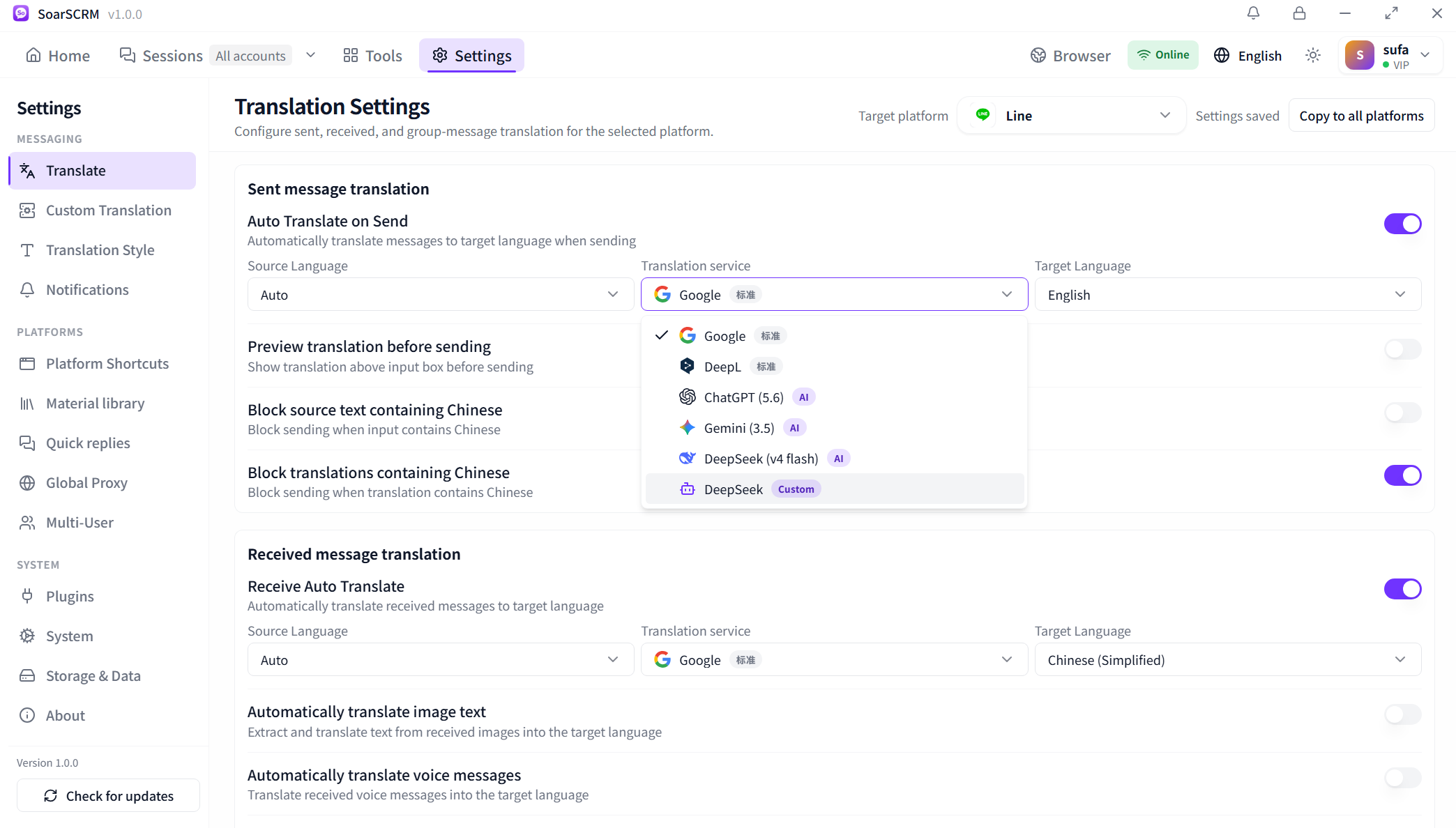
Translation settings in SoarSCRM 1.0.0: included and custom services share the same selector.

Add a custom translation service

Open Settings → Custom Translation → Add service. Enter a name and choose an API address from Popular providers or enter your compatible endpoint. Close the list to enter the model and API key. The screenshot shows presets for OpenAI, DeepSeek, Gemini, Qwen, GLM and Kimi.
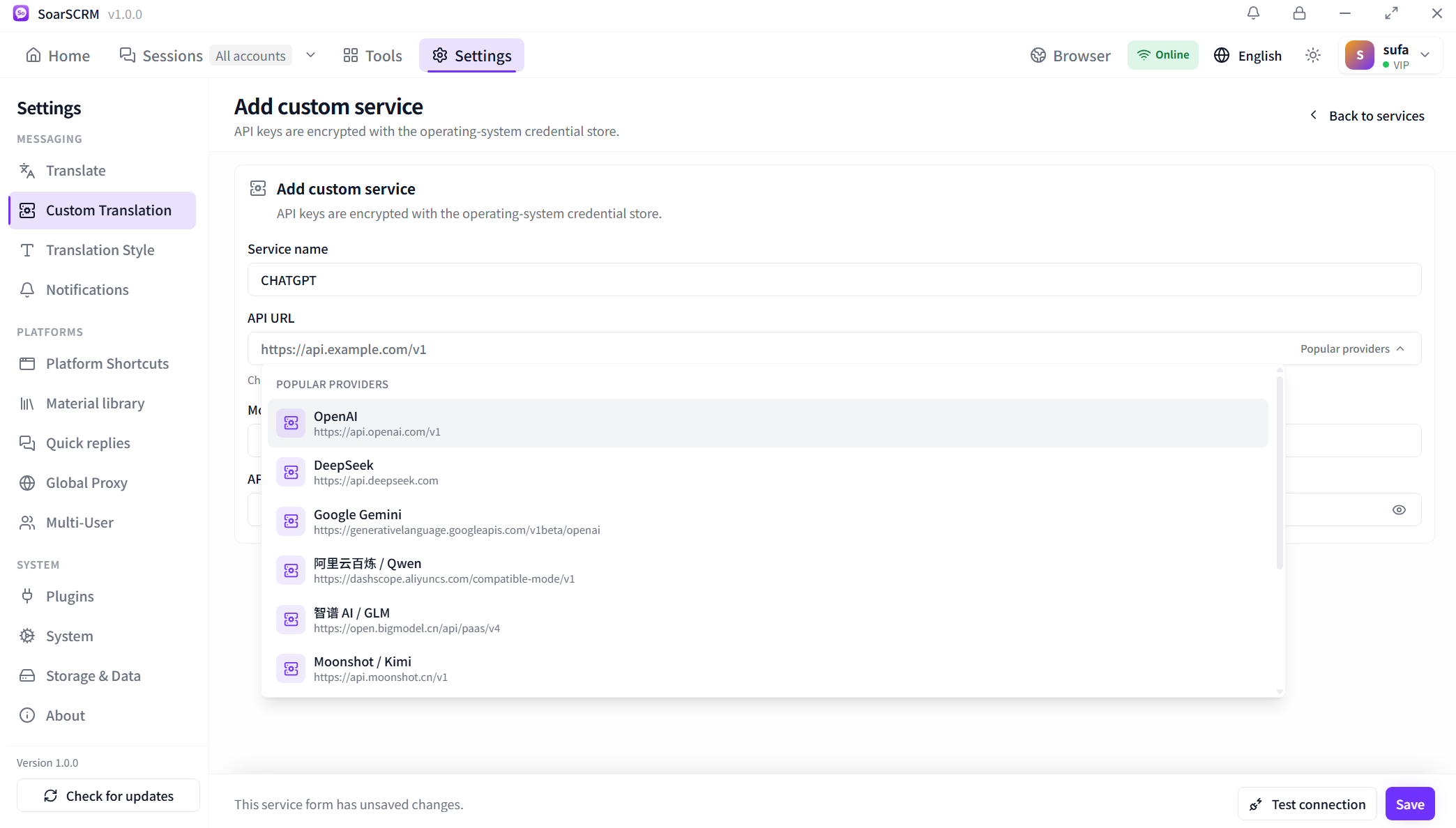
Add-service detail: choose an API address from popular providers, then enter the model and key.

Test the connection and save

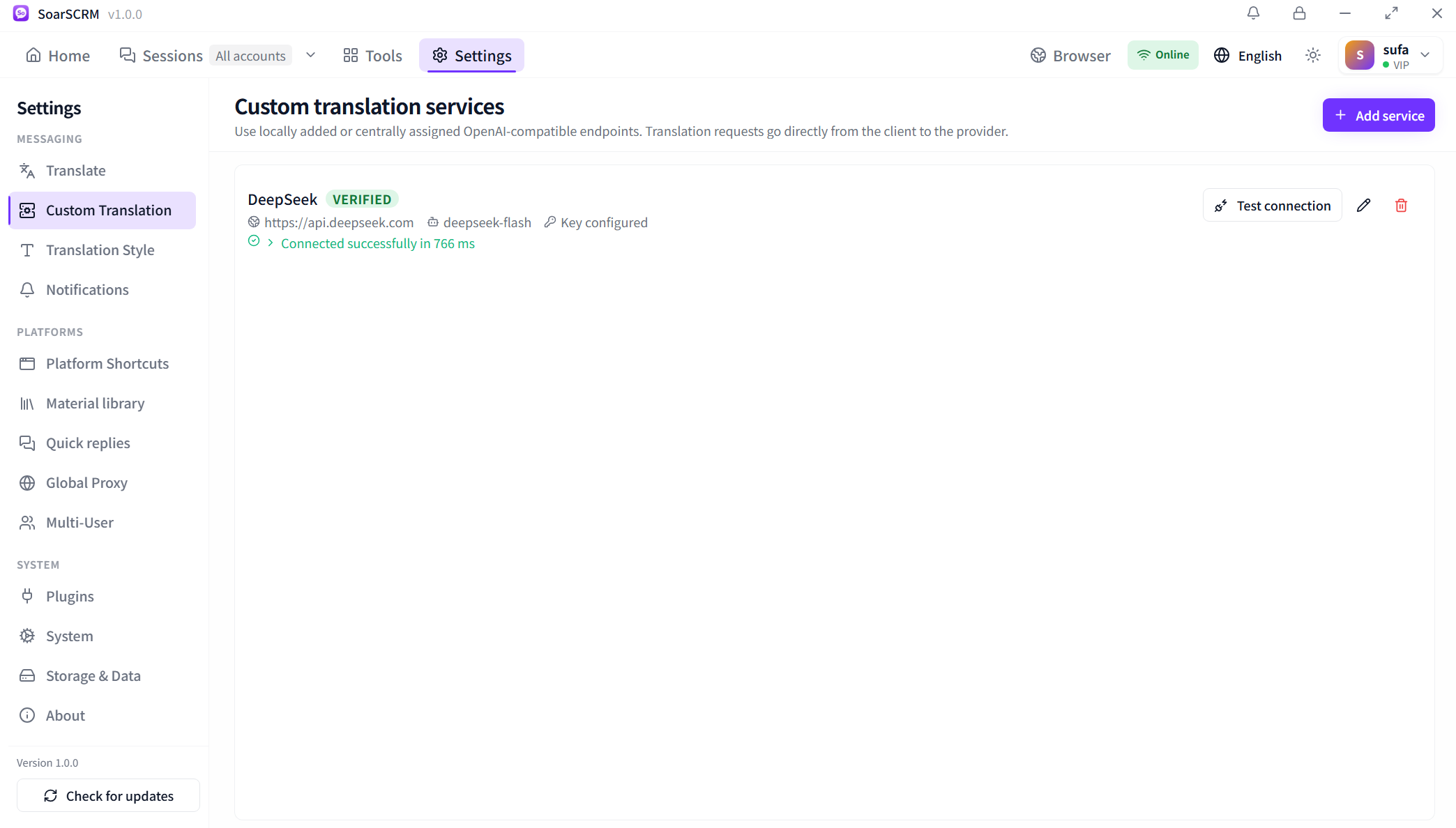
Click Test connection, then Save after a successful result. The service list shows the VERIFIED status and lets you run another test. Test again after changing the address, model or key.

Service-list detail: DeepSeek shows VERIFIED and a successful connection result.

Select the service in translation settings

Open Settings → Translate and choose the target platform. Select the service with a Custom badge for sent or received messages and configure each language direction. The screenshot shows custom DeepSeek in the available list. After selecting it, confirm settings are saved and check a conversation; enable the sending preview when needed.

Service-selector detail: the custom DeepSeek entry carries a Custom badge alongside included services.

Getting started

  1. Open Settings → Custom Translation → Add service and enter the name, API URL, model and key.
  2. Test the connection, save after success and check the verification status in the service list.
  3. Open Settings → Translate, choose a platform, select the Custom service and languages, then check a conversation.

Availability and setup

Custom providers generally use your own key and provider quota, with their own billing and availability. Select the connected service in a conversation and review translations with the preview before sending.

Compare plans and features