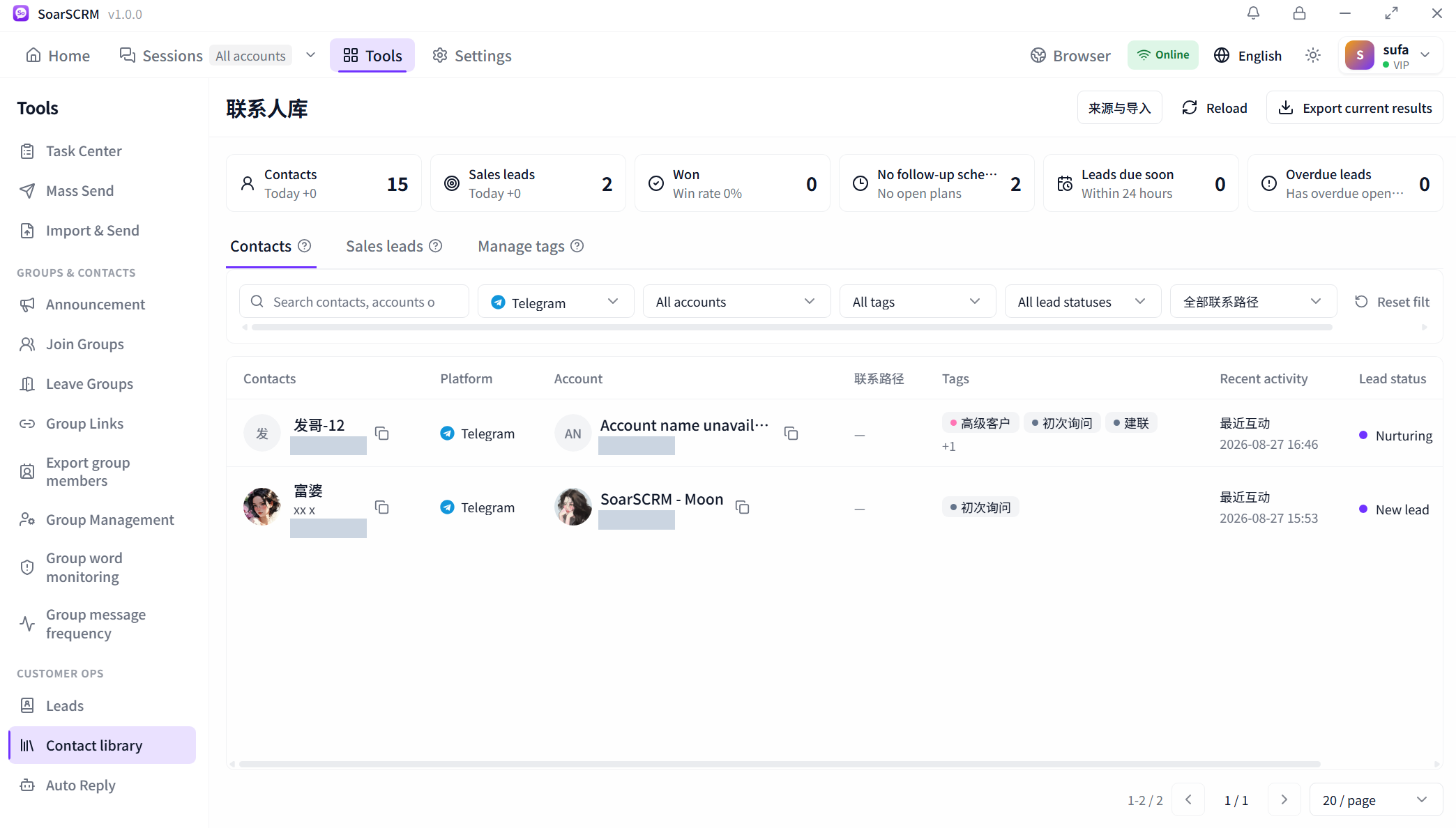
Contact library in SoarSCRM 1.0.0: contacts, associated accounts, tags and lead status. IDs are redacted.
01
Review sales leads by stage
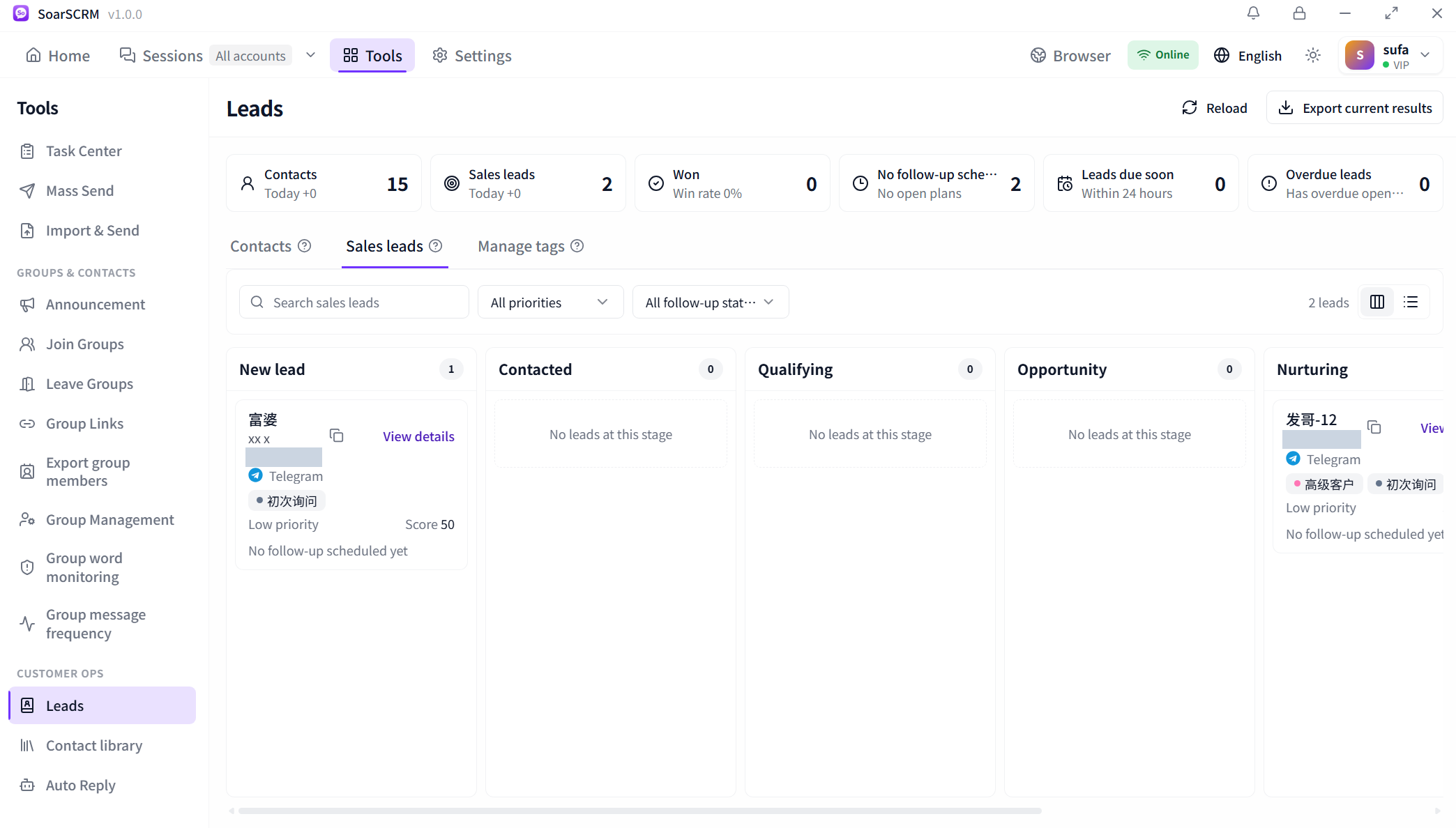
Open Leads under Tools and use the Sales leads board to review stages such as New lead, Contacted and Qualifying. Filter by priority and follow-up status, review tags, scores and scheduled follow-ups on each card, then open details for the next action.
Lead-card detail: stage, tags, priority, score and follow-up status. IDs are redacted.
02
Organise contacts by platform and account
Filter the contact library by platform, account, tags or lead status and check recent activity to find customers to contact. Use the source and import entry to organise existing records, or export the current results. Check platform and account details when names match.
Contact-library detail: filter by platform and account, then check each contact and its associated account. IDs are redacted.
03
Update profiles beside the conversation
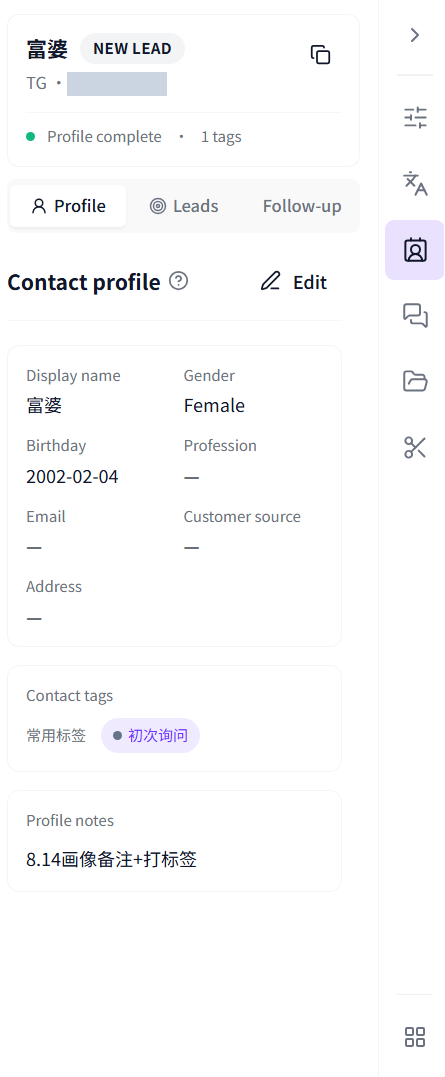
Open the profile panel on the right of a chat to view contact details, tags and notes. Select Edit to complete the profile, and switch between Profile, Leads and Follow-up to keep customer context and next actions close to the conversation.
The profile sidebar shows contact details, tags and notes. IDs are redacted.
Getting started
Open the contact library, filter by platform and account, and verify the customer to follow up.
Open Sales leads, review stages and follow-up filters, then open a lead to check the next action.
Return to the profile panel beside the chat to update details, tags, notes and follow-up records.
Availability and setup
Synced fields, presence and timestamps depend on platform data. Shared customer libraries and editing require the relevant plan and permissions; names are not automatically merged across platforms.