Operations & data

Data backup and operations analytics

Export and restore selected client datasets, and review online status, task records and available business statistics to understand daily activity.

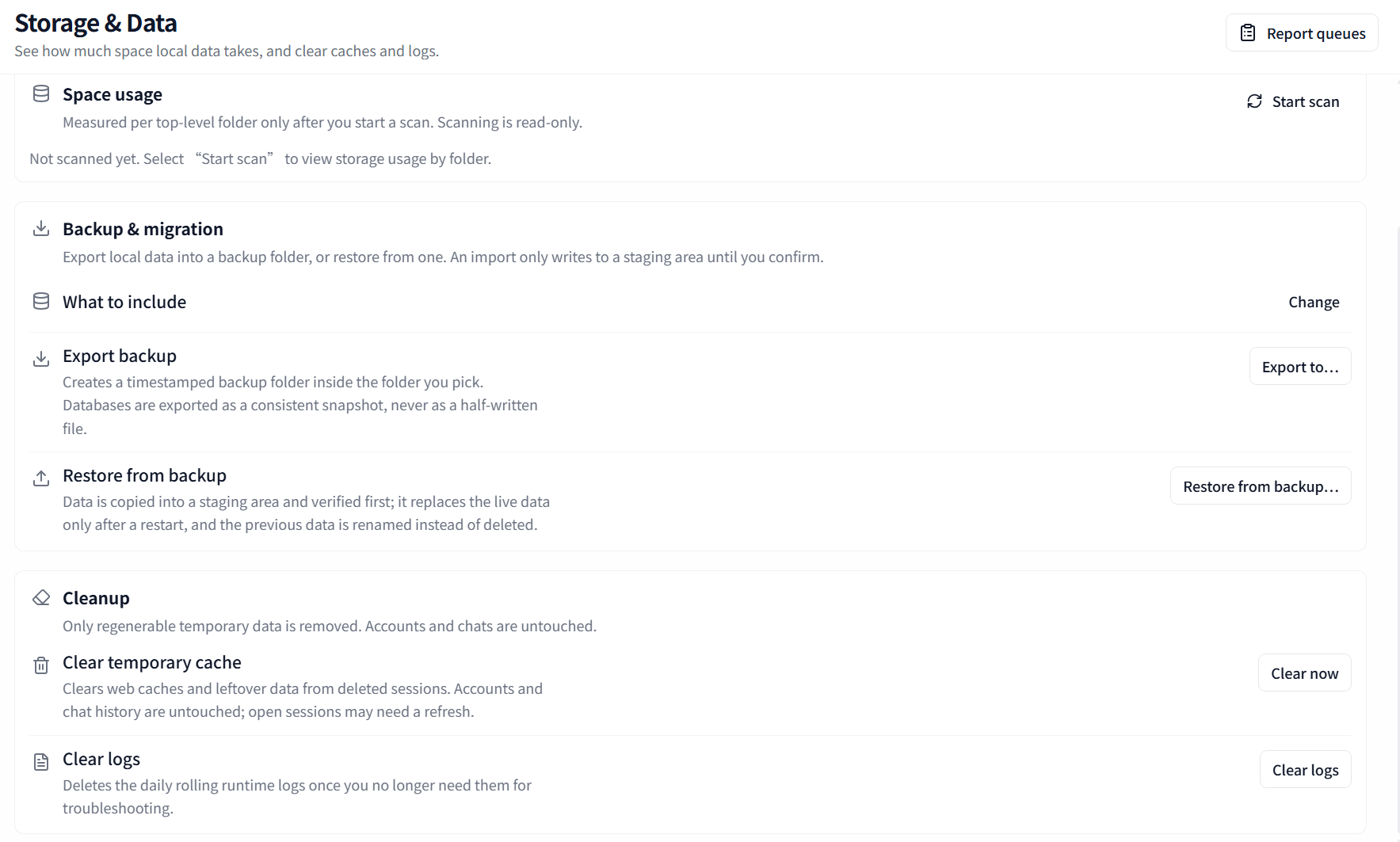
Backup and migration detail: select included data, export a backup or restore one. The full capture also shows storage scanning and cache and log cleanup.

Back up datasets and manage the data folder

Select the data to include in Storage & Data and export it to a chosen folder. Restores are staged and verified before confirmation and an app restart. Use Data folder to inspect the location or open migration settings; folder migration, cache cleanup and backup restoration are separate actions.

Data folder: view the location, open the folder or access migration settings. The personal username in the path is redacted.

Review accounts, ports and devices

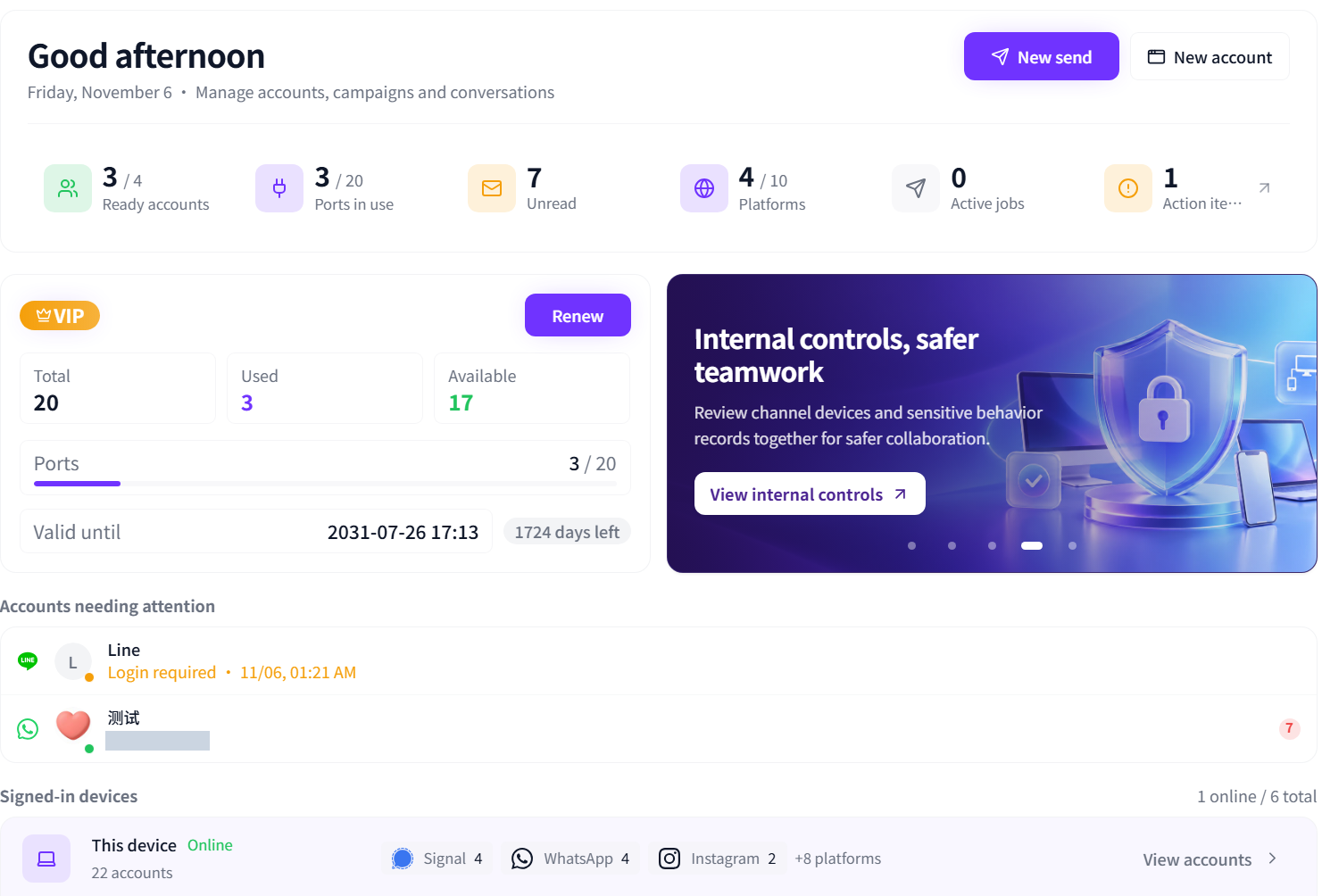
The home dashboard brings together ready accounts, port usage, unread messages, active jobs and action items, with accounts needing attention and signed-in devices. Organisation port usage and local account counts have different definitions; inspect task results in Task Center.

Home dashboard: account readiness, port usage, unread messages, active jobs and signed-in devices. Account numbers are redacted; figures reflect the captured state.

Inspect report queues and delivery status

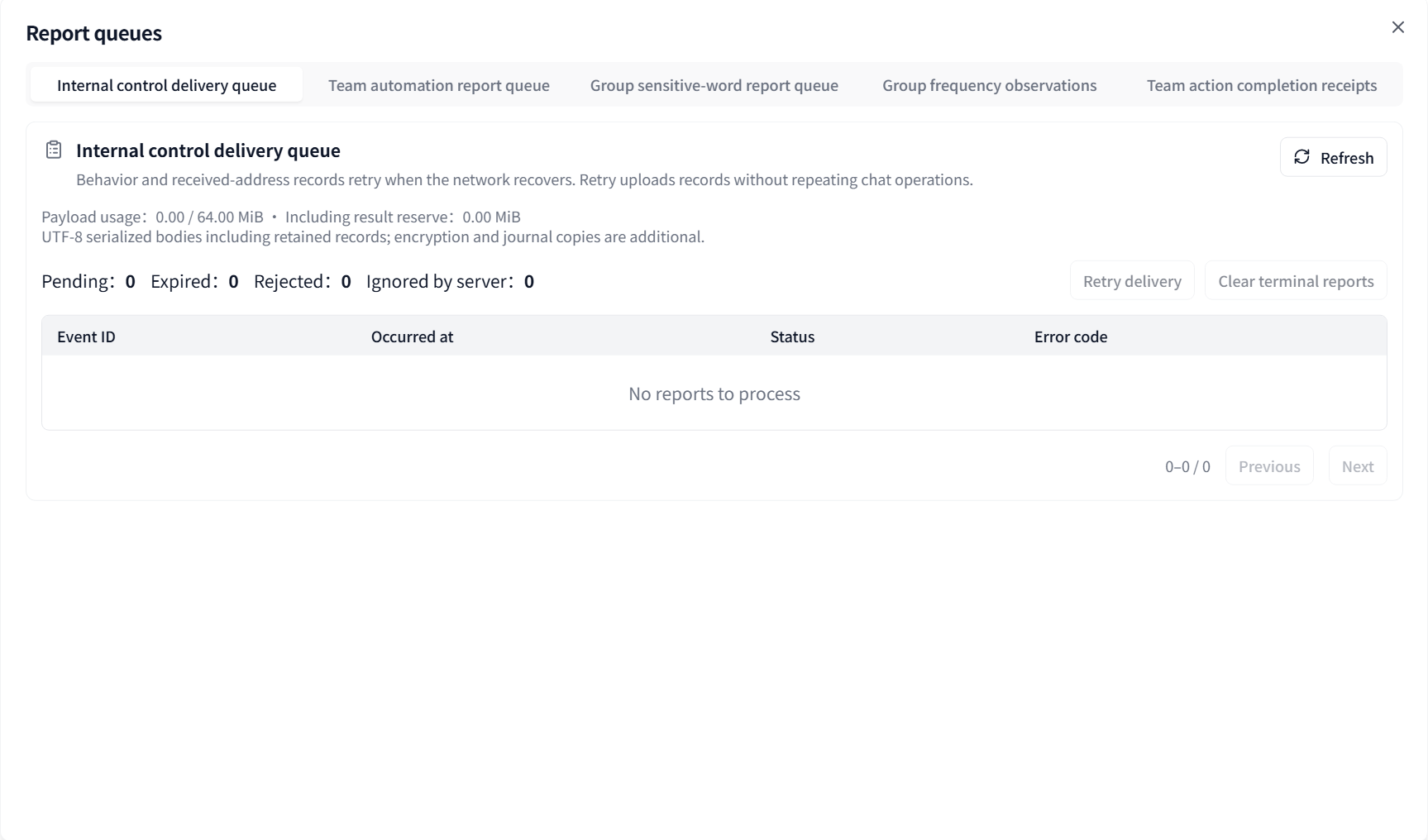
Switch between internal-control, team automation, sensitive-word, group-frequency and team-action receipt queues. The internal-control queue shows pending, expired, rejected and server-ignored records. Retrying uploads records without repeating chat actions.

Report queue detail: the selected internal-control queue is empty. Switch report categories to inspect their status; delivery retries do not repeat chat actions.

Review work orders and intake by period

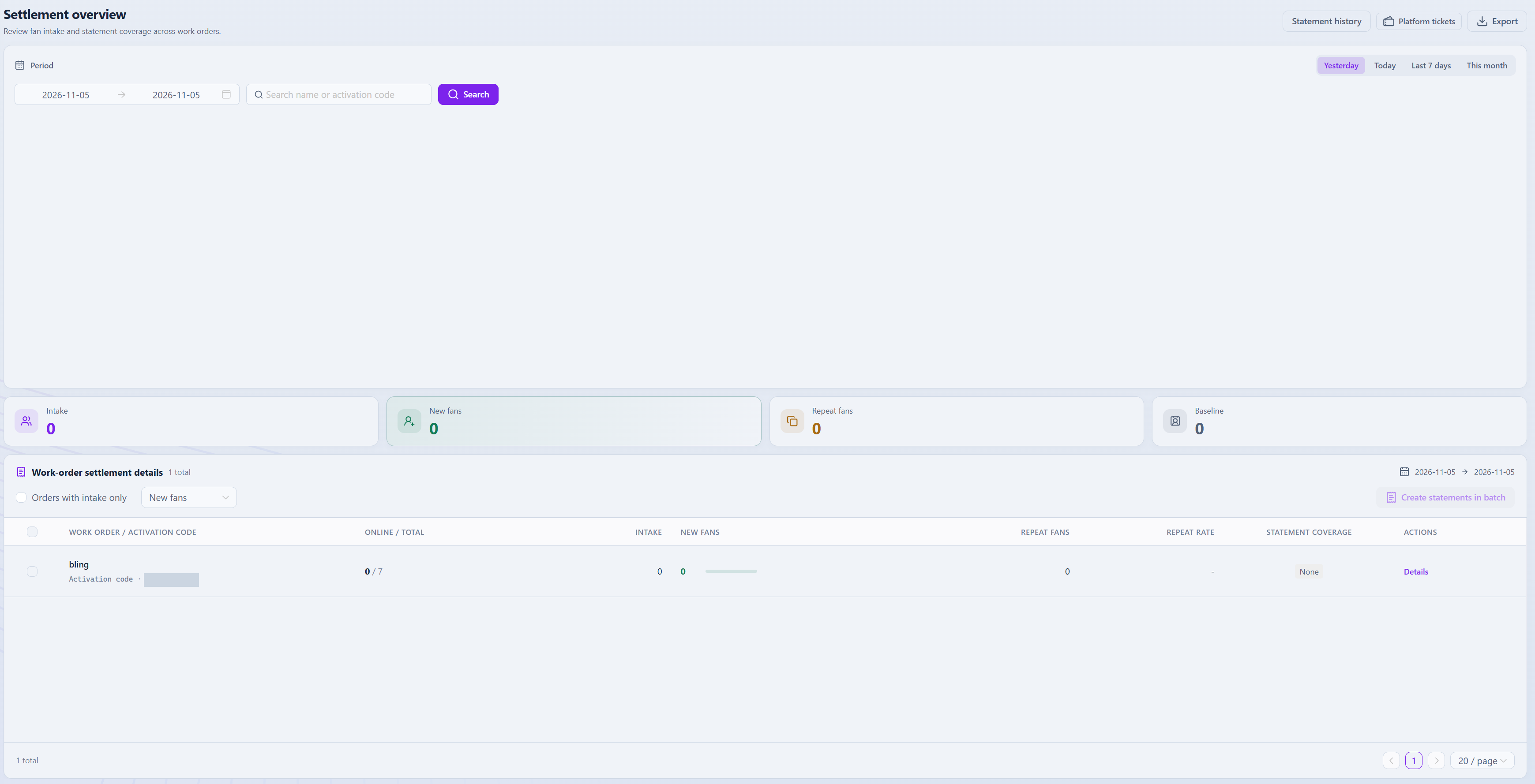
In the management dashboard, choose a date range and search by name or activation code to inspect intake, new fans, repeat fans and baseline counts. Check online work-order accounts, repeat rates and statement coverage, then export the selected reporting scope.

Settlement detail: fan intake, new fans and online work-order accounts. Counts are zero and the activation code is redacted. The full capture includes dates, repeat fans and statement coverage.

Getting started

  1. Choose the data to preserve or the statistic to inspect, including accounts and dates.
  2. Export selected datasets in Storage & Data, or open task and business records.
  3. Verify export contents and metric definitions before restoring, handing over or reviewing.

Availability and setup

Backups cover only the explicitly listed datasets, not guaranteed complete third-party chat history. Statistics and action records depend on collection scope and entitlements, and are not deleted-message recovery.

Compare plans and features