
Messaging & accounts

Real-time, two-way chat translation

Read customer messages and translate your replies in the same conversation. Configure incoming and outgoing languages separately for enquiries, orders and support.

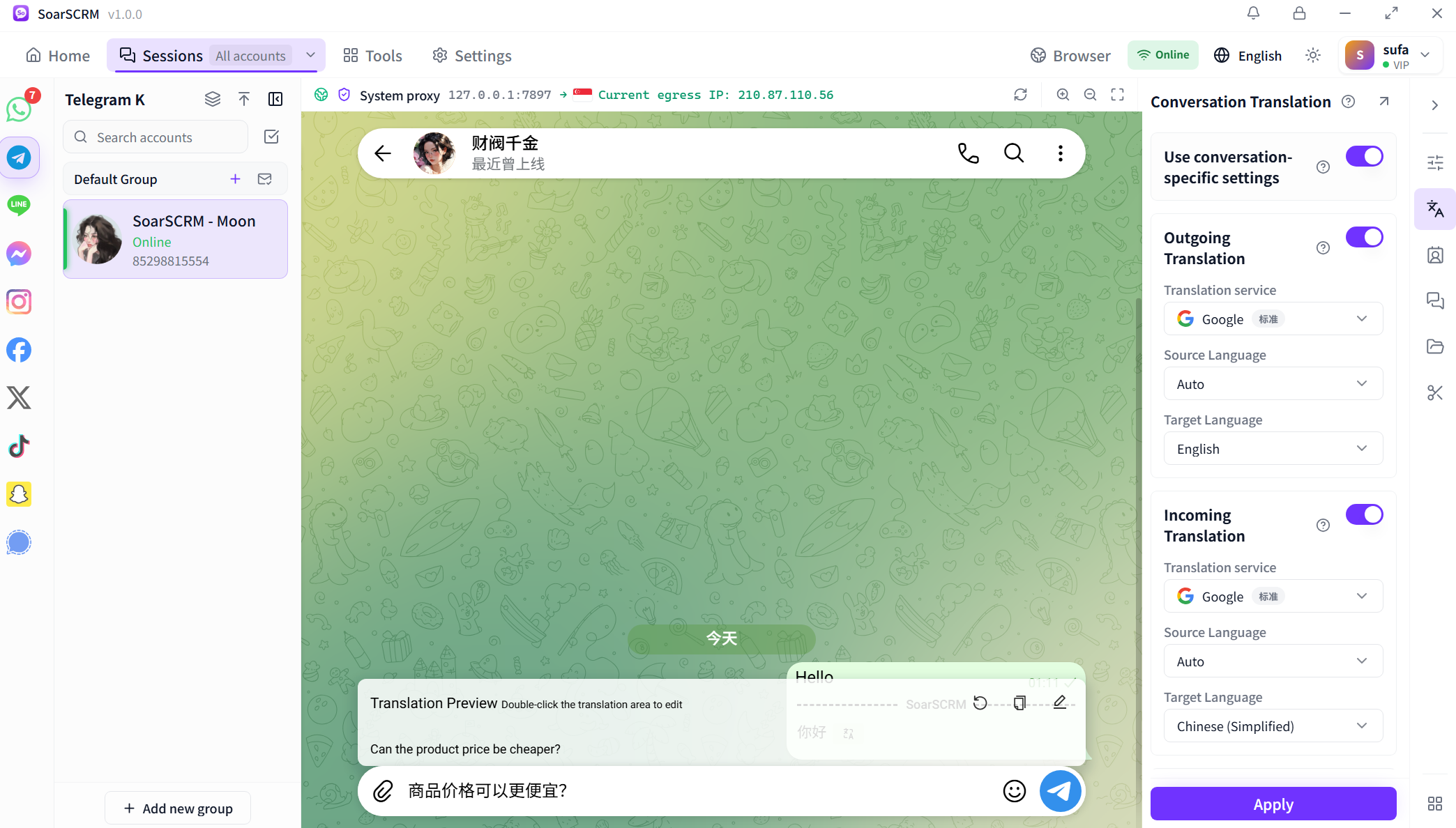
A Telegram conversation in SoarSCRM 1.0.0, with separate translation directions and a reply preview above the input.

Choose each translation direction

Open the translation panel beside the conversation and enable conversation-specific settings when this customer needs a separate configuration. Choose the service, source language and target language for each direction, then click Apply. The example sends in English and reads incoming messages in Simplified Chinese, with automatic source detection.
Conversation settings detail: outgoing messages target English; incoming messages target Simplified Chinese. Outgoing translation settingsConversation settings detail: outgoing messages target English; incoming messages target Simplified Chinese. Incoming translation settings
Conversation settings detail: outgoing messages target English; incoming messages target Simplified Chinese.

Review replies before sending

Enable outgoing translation and its preview to see the translated reply above the input. The screenshot previews an English translation of a Chinese question about a lower product price. Double-click the preview text to edit it, check prices, quantities and names, then send.

Reply-preview detail: review the English translation of a Chinese question about a lower product price before sending.

Translate screenshots and compare the result

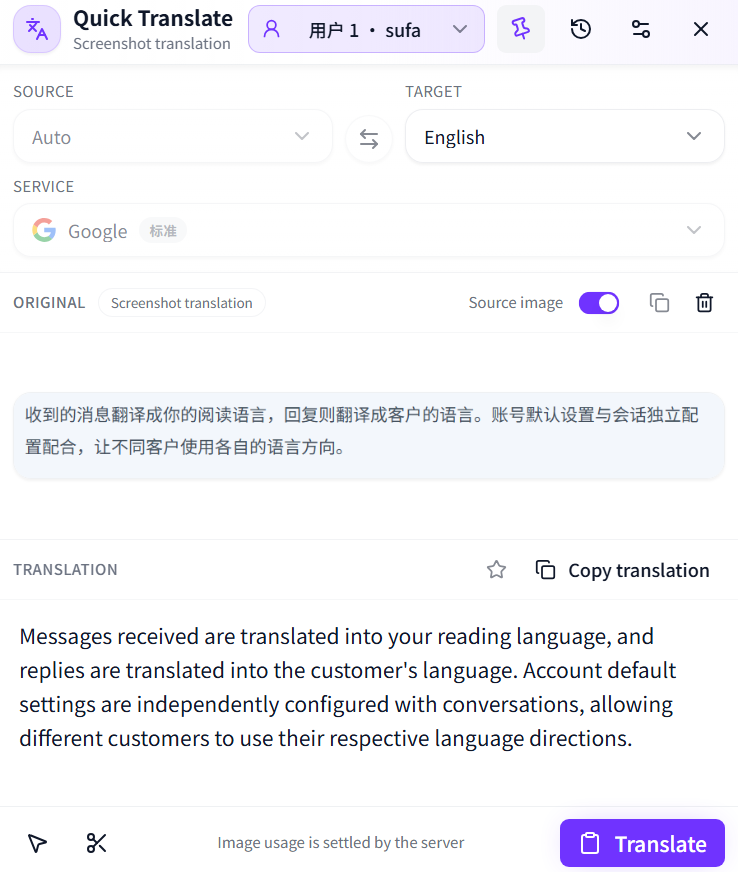
Use the screenshot action in Quick Translate to select a screen region. Choose the target language in the Quick Translate window and click Translate. View the source image alongside the result and use Copy translation to copy it. The example translates Chinese into English for text found in images or interfaces.

Quick Translate screenshot translation: view the source image and English result together, then copy the translation.

Getting started

  1. Sign in to the platform and open a working customer conversation.
  2. Open the conversation translation panel, enable separate settings if needed, configure both directions and click Apply.
  3. Enable the reply preview and review your translated input; use screenshot translation to read and copy text from images.

Availability and setup

Text, images and voice have separate availability requirements. Media support differs across platforms. The platform tutorials below explain text conversation settings.

Compare plans and features

Explore chat translation by platform

Choose your messaging platform to learn about translation, multiple accounts and the settings to check before you start.