
Customers & content

Quick replies and material library

Organise reusable wording, images and other materials for customer conversations and tasks, keeping replies faster and more consistent.

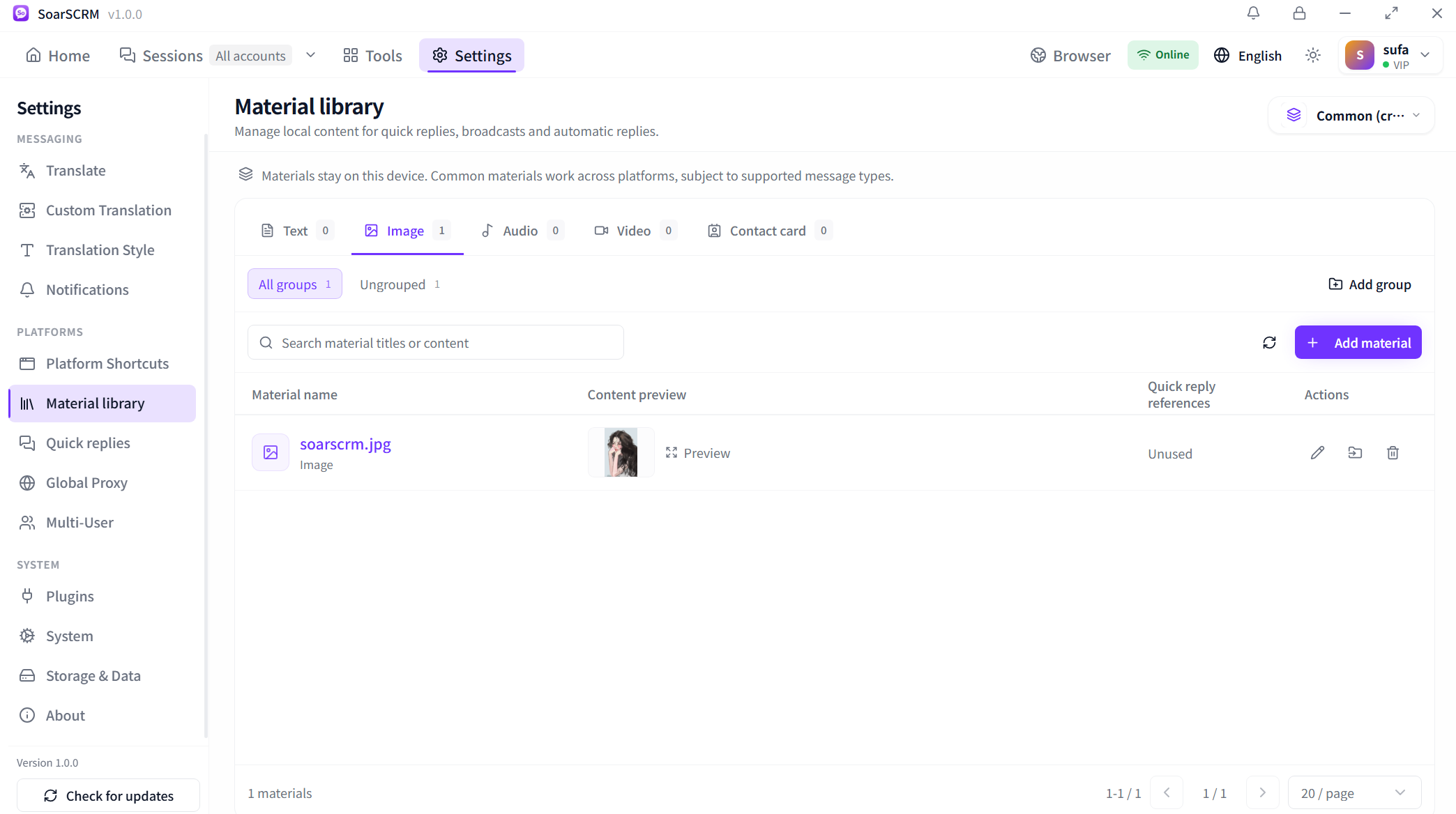
Material library in SoarSCRM 1.0.0: organise local content by type and group for quick replies and other supported uses.

Organise materials by type and group

Open Material library in Settings to manage text, images, audio, video and contact cards. Use Add material, groups and search to organise content and review its preview. Materials stay on this device; Common materials work across platforms that support their message types.
Material-library detail: switch types, search titles or content and preview an image.

Combine materials into reply templates

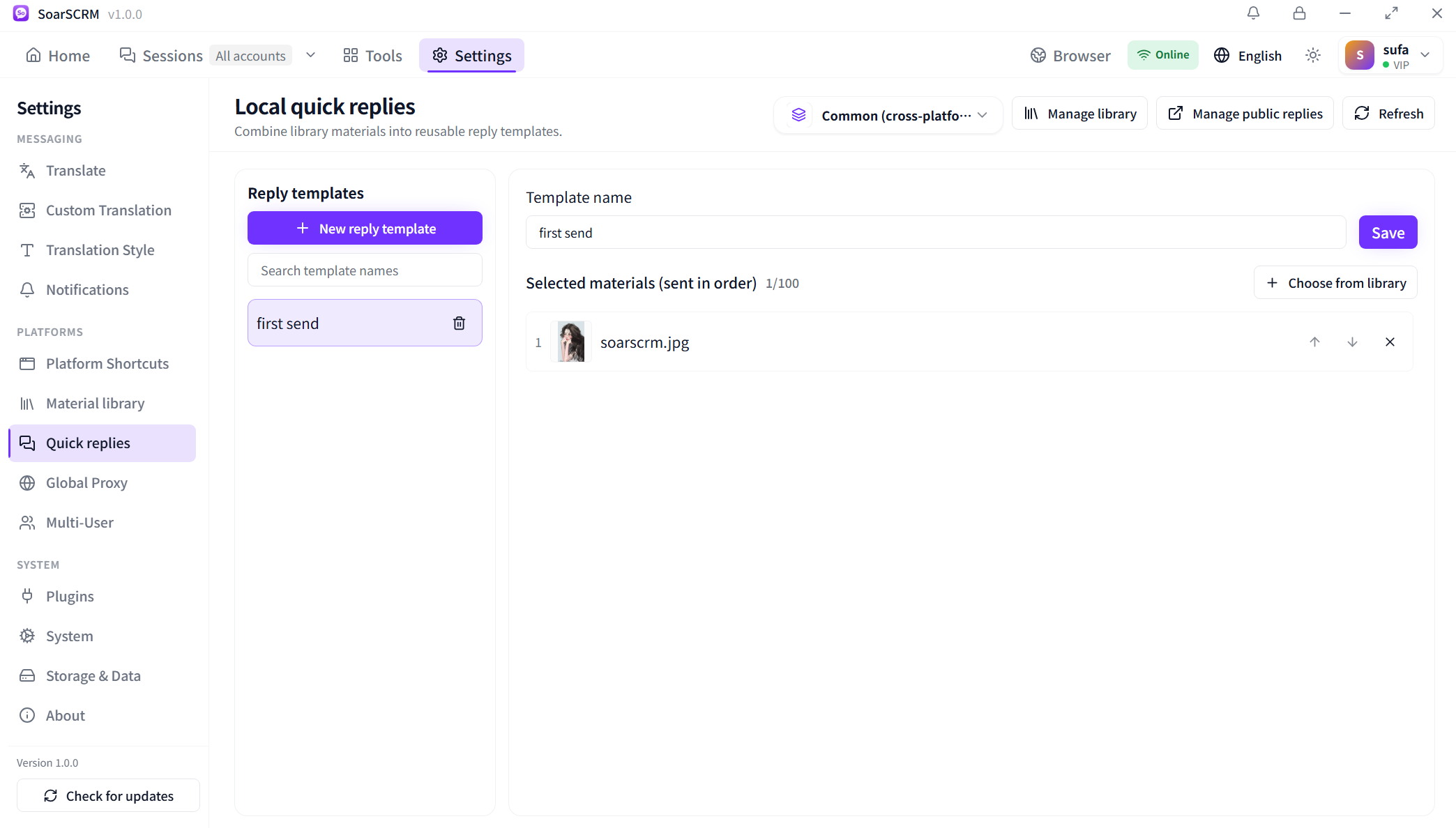
Open Quick replies, create and name a template, then use Choose from library to select materials. Arrange them with the up and down arrows and select Save to reuse product introductions, quotes or support replies. The screenshot shows a template with one image selected.

Reply-template editor: name the template, choose library materials, arrange their order and save. One image is selected here.

Find and send replies beside the chat

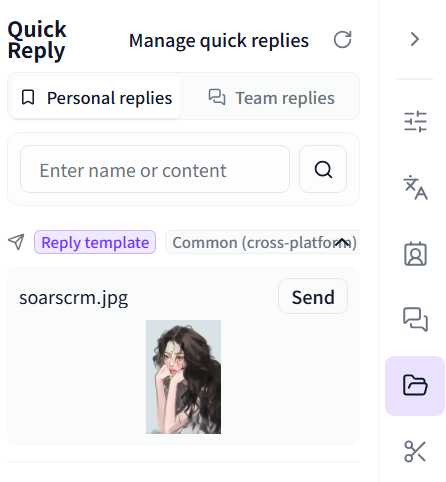
Open the Quick Reply sidebar and search Personal replies by name or content. Check the preview and current customer before selecting Send. Use Manage quick replies to change a template, or switch to Team replies to access team content when permitted.

Quick Reply beside the conversation: switch between personal and team replies, search, review the content and select Send.

Getting started

  1. Add content in Material library, organise its type and group, and check the preview.
  2. Create a template in Quick replies, choose library materials, arrange their order and save.
  3. Open Quick Reply beside the conversation, find the reply and check the customer, language and attachments before selecting Send.

Availability and setup

Quick replies are selected manually. Keyword and welcome replies belong to automation rules. Sending support depends on the target platform and material type.

Compare plans and features