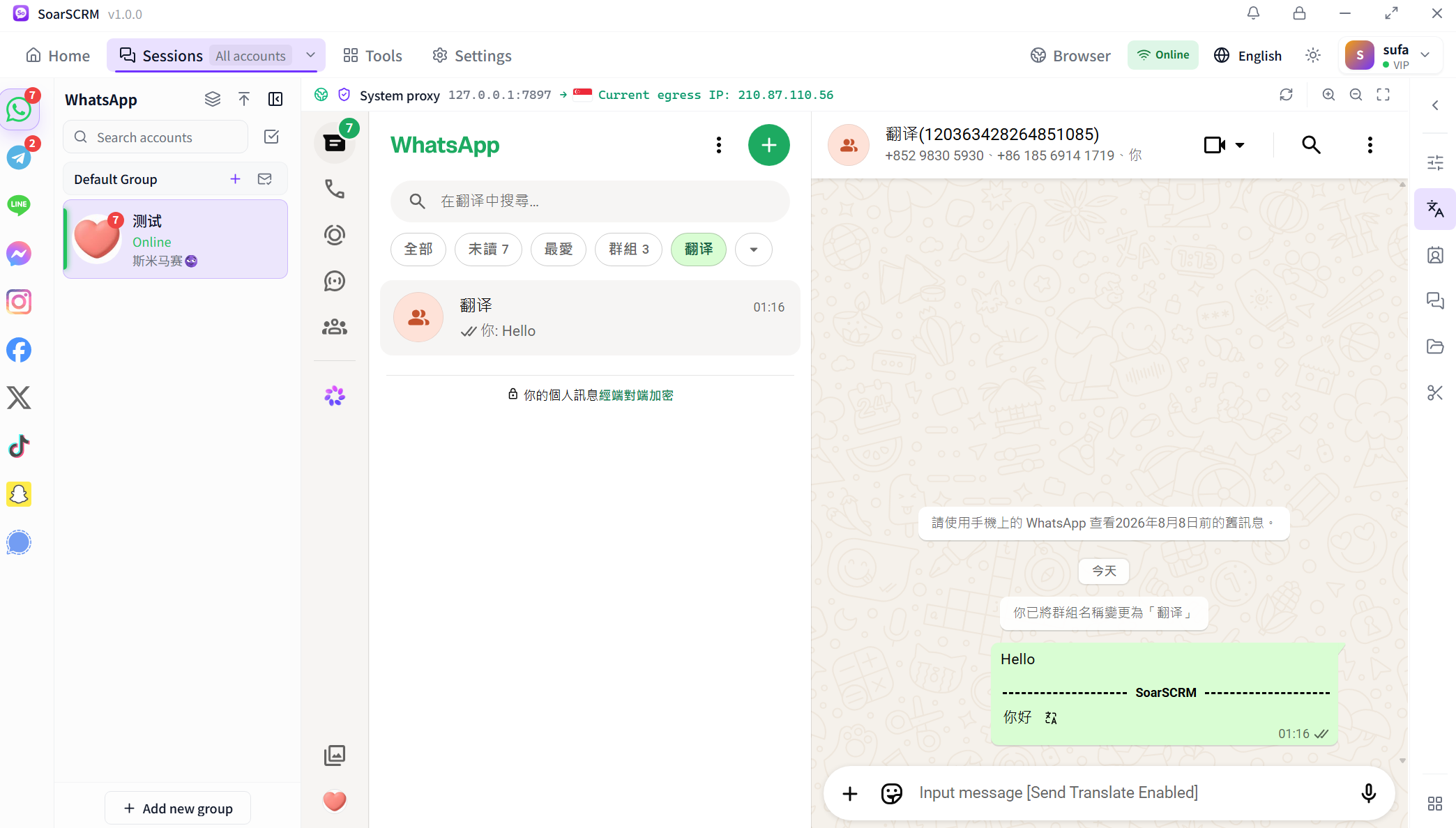
Actual WhatsApp chat translation in SoarSCRM 1.0.0.
Where it fits your conversations
Keep product enquiries, quotations and after-sales questions in the same conversation. Useful when sales and support repeatedly clarify specifications, quantities, shipping and delivery dates.
Check the active WhatsApp account and customer before choosing the reply language. Keep prices and delivery terms in context, and verify the recipient when switching accounts.
WhatsApp chat translation tutorials
Find practical steps for incoming messages, reply previews, individual chat languages and translation troubleshooting.
Before you start
Sign in to SoarSCRM and your WhatsApp account in the Windows app. Open a conversation that can send and receive text messages. The steps below use SoarSCRM’s conversation translation settings.
Check the direction of translation
Setting
Incoming customer messages
Your outgoing replies
Source language
The customer’s language, or auto-detect when supported
The language you type
Target language
The language you want to read
The language your customer uses
Compare the original and translated message
This detail comes from an actual conversation in the app. The translation appears below the original text. See the tutorial below to enable a preview before sending replies.
Detail from the WhatsApp screenshot: Hello and its Chinese translation appear in the same chat bubble.
How do I automatically translate incoming WhatsApp messages?
For a customer writing in another language, set the incoming target language to the language you want to read.
Choose the correct account and conversation, then open its translation settings. Enable the conversation-specific configuration to change only this chat. When it is off, the controls follow account defaults and cannot be edited individually.
Enable incoming translation and select an available translation service. Choose the customer’s source language, or auto-detect if supported, then select your reading language as the target.
Click Apply at the bottom of the panel and wait for confirmation. Check the translation of a subsequent incoming text message in that conversation.
Check the result
Incoming translations should use your reading language. Configure the reply language separately under outgoing translation.
Keep in mind:Changing the translation service can reset language selections. Check both languages again. Whether all older messages are retranslated is not a reliable check of new-message translation.
How do I preview a translated reply before sending it on WhatsApp?
Use your typing language as the source, the customer’s language as the target, and enable Preview Before Sending.
In the customer’s conversation settings, enable conversation-specific configuration and outgoing translation. Select a service, your source language and the customer’s target language.
Enable Preview Before Sending, click Apply and wait for confirmation. Incoming translation alone does not enable reply previews.
Write a short reply you intend to send. Press Enter to review the translation preview. Check amounts, quantities, dates and names, then confirm sending only when the wording is correct.
Check the result
With preview enabled, Enter should open the translation confirmation step before sending the reply.
Keep in mind:Turning off outgoing translation also turns off the preview. If you do not intend to send the reply, cancel the preview and edit it instead of repeatedly sending test messages to customers.
How do I use different languages for different WhatsApp customers?
Conversation-specific configuration controls one chat. Chats without it follow the account’s default settings.
Open the first customer’s conversation and enable its individual configuration. Set your reading language for incoming messages and the customer’s language for replies, then click Apply.
Open the second customer’s conversation and check the account and contact. Enable its individual configuration, select that customer’s language and click Apply. Do not change account defaults just to configure one customer.
Return to both chats and check their outgoing target languages. To make a chat follow account defaults again, disable its individual configuration and click Apply.
Check the result
Two individually configured chats can use different reply languages. Chats with individual configuration off follow account defaults.
Keep in mind:Check private and group conversations separately. Verify the current contact and settings before sending quotations or important agreements.
What if WhatsApp translation fails, controls are disabled or the language is wrong?
Check the conversation state, saved settings, language direction and service in order, changing one thing at a time.
If the panel asks you to sign in or says the conversation is being prepared, complete platform sign-in and open a chat. Check that text messaging works before changing translation switches.
If controls are disabled, check whether individual conversation configuration is off. Enable it when needed, verify incoming and outgoing switches, then click Apply and confirm that saving succeeds.
If the translation uses the wrong language, check source and target languages separately for incoming messages and replies. Recheck them after changing translation services.
If a saved configuration still fails, check the network, service availability, plan entitlements and translation allowance. Give support your platform, app version, steps and error text; hide account details and messages in screenshots.
Check the result
Recheck with one text message. If it still fails, keep the exact error and time for support.
Keep in mind:These steps cover text chat. Image, voice and file translation are separate capabilities and cannot be inferred from the text translation switches.
Translation services, languages and allowances depend on the current app and plan. Public downloads currently support Windows; the Mac version is not yet available.
Before you get started
How does this compare with translation inside WhatsApp?+
Compare your needs for mobile translation, desktop replies, multiple accounts and team use. SoarSCRM combines chat translation and social accounts in a desktop app. Check the current official WhatsApp version for its native translation capabilities.
How do translation allowances and account limits work?+
Translation characters and concurrent account ports are separate allowances. Each simultaneously online social account uses a port. Check the pricing page for standard and advanced translation entitlements.
Explore chat translation by platform
Choose your messaging platform to learn about translation, multiple accounts and the settings to check before you start.